Start with the poster size before you open the file
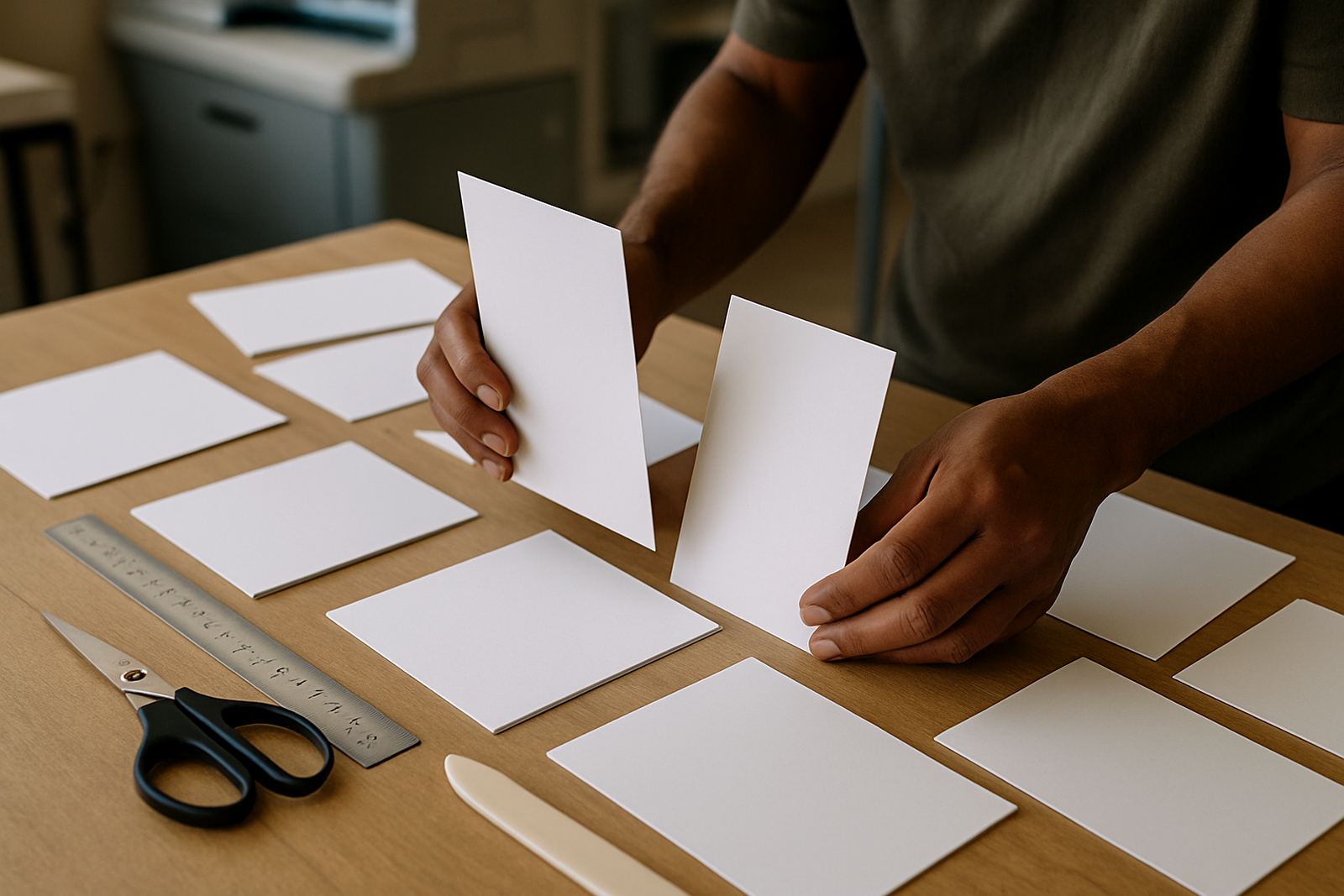
Before you start any artwork, decide on the finished poster size. A3, A2, A1 and custom sizes all need different file handling, especially if the poster is going to be viewed from close range at a shop front in Randfontein CBD or across a room in Krugersdorp. The file must be built to the final cut size, with bleed added around the edges so there is no thin white line after trimming.
For posters that must be read up close, such as menus, notices or promotional offers, use a higher resolution and keep text large enough to read without strain. For bigger wall posters or window posters, the viewing distance gives you a bit more flexibility. The main thing is to set the size correctly from the start, rather than scaling a small file up later and hoping for the best.
- Set the document to the final finished size.
- Add 3 mm bleed on all sides unless your layout needs more.
- Keep a safe margin of at least 5 mm inside the trim line.
- Do not place important text or logos too close to the edge.
Resolution rules for small and large posters
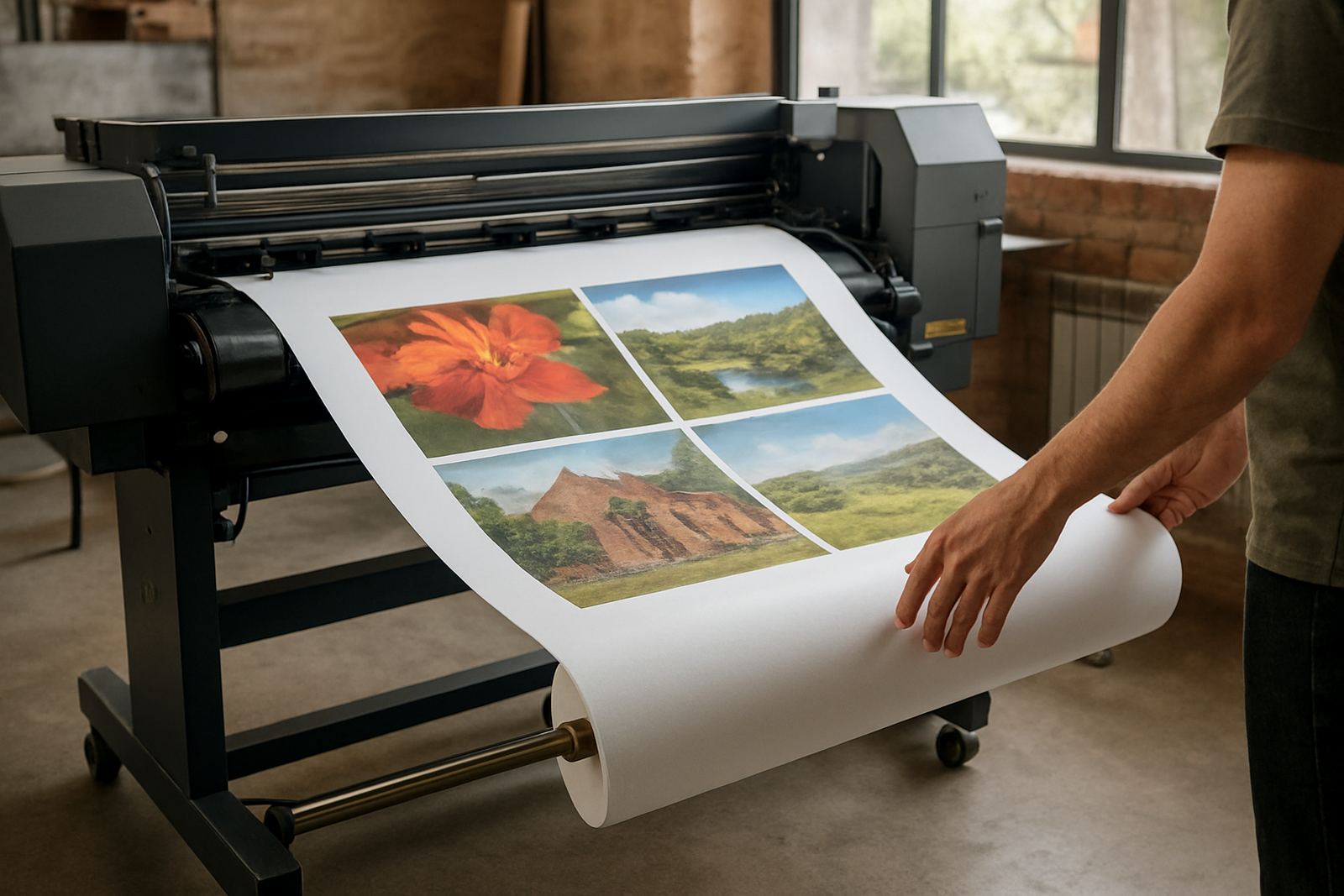
Resolution is where many print files go wrong. A small poster that will be seen close up needs sharper detail than a large banner style poster that is read from a distance. For most poster work, 300 dpi at final size is the safe standard for small posters and detailed layouts. If the artwork is larger and meant for distance viewing, 150 dpi can be enough at final size, as long as the image is clean and not stretched.
If you are working in pixels, do not just trust the screen view. A file that looks fine on a laptop can still print soft if the source images are poor. Photos pulled from social media or a quick WhatsApp image often arrive with too little detail. That is especially a problem for faces, product shots and fine lines, and the issue becomes more obvious on matt paper or satin stock.
- Small posters and close viewing: aim for 300 dpi at final size.
- Large posters viewed from a distance: 150 dpi at final size is often acceptable.
- Use original photos where possible, not compressed copies.
- Avoid enlarging low resolution images inside the layout.
Colour setup that prints cleaner on local production runs
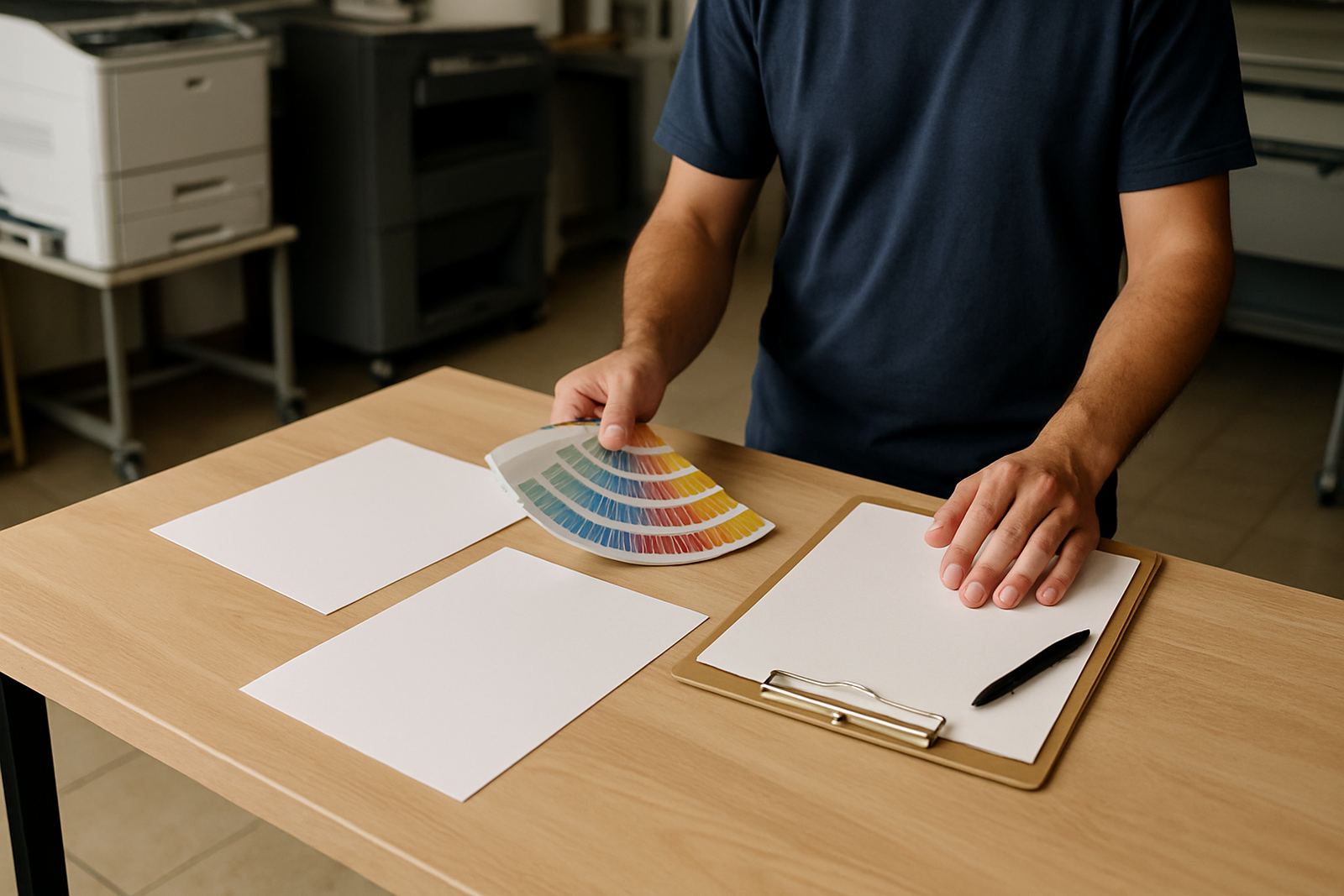
Poster artwork should be prepared in CMYK, not RGB, if it is going straight to print. RGB colours can look brighter on screen but shift in print, especially reds, dark blues and deep greens. On local digital print runs, the best results come from files that are built for the printer from the beginning, with all images converted properly and all blacks used consistently.
For black text, use solid black only. For big solid areas, ask for a rich black setup if the artwork allows it, but keep small text on pure black so it stays crisp. If your poster is going to hang near direct sunlight or in a damp area near the coast, colour will still fade over time so it is worth planning replacement prints when needed. With load-shedding and tight turnaround days, it helps to keep the file simple and printer ready.
- Convert images to CMYK before export.
- Use pure black for small text.
- Do not rely on screen brightness to judge colour.
- Check colour contrast for readability at a distance.
Fonts, images and artwork that survive trimming
Good poster file setup is not only about resolution. Fonts must be outlined or embedded properly, and any linked images should be included when the file is sent. If a font goes missing, the layout can shift and text can wrap differently. If an image link breaks, you may end up with a blank box or a low quality replacement. That sort of thing can delay a same-day job from Westonaria to Roodepoort, and nobody wants to rerun a print because a file was incomplete.
Keep the design tidy. Avoid using too many fonts, avoid tiny text on busy backgrounds and make sure your image borders are not sitting too close to the trim. If the poster includes a QR code, leave enough space around it so phones can scan it properly. The code should be tested on a few devices before export, because a blurred or crowded QR code is often useless in real life.
- Outline fonts or embed them when exporting.
- Place all linked images in the same folder before sending.
- Keep QR codes large enough to scan from the intended distance.
- Use clean contrast between text and background.
Export settings we use for print-ready poster files
When you export the final file, choose a print-friendly format and keep compression sensible. PDF is usually the safest option for posters because it preserves layout, text and vector artwork well. A high quality PDF with bleed and crop marks is ideal for most jobs. If the artwork was built in a design application, make sure images are not overly compressed on export. Heavy compression can leave banding, blocky edges and fuzzy lettering.
If your poster includes photos, make sure they are flattened only when needed and that transparency is handled correctly. Check that the export has not converted everything to a low quality image. Some people send a file from their phone and think it is fine, but the poster comes through with soft edges and poor text. A few extra minutes spent on export can save a full reprint.
- Export as PDF for most poster jobs.
- Include bleed and crop marks where needed.
- Keep image compression high quality, not maximum shrink.
- Check that the file opens correctly after export.
Final checklist before you send the file
Before you send your poster artwork for print, do a final check on the basics. Look at size, bleed, images, fonts, colour mode and spelling. Read the poster at full size if you can, or zoom in to 100 percent on screen. If the poster is for a local event, sale or opening in Mogale City, even one wrong date or phone number can make the whole print useless.
If you are unsure about the file, send it with a note saying what size you want and where it will be used. That helps us check whether the artwork is suitable for a quick digital run or whether it needs a bit of fixing first. Lerato and the production team can usually spot the common issues fast, but it is always better to catch them before the job is on the press. A clean file means less back and forth and a better result overall.
- Confirm the final size and orientation.
- Check spelling, dates, prices and contact details.
- Make sure images are sharp at print size.
- Save a backup copy of the final file.