Start with the right PDF preset
The safest starting point is a print-ready PDF preset that keeps fonts, images and layout intact. For most business print jobs in Randfontein and nearby areas like Krugersdorp, Westonaria and Roodepoort, that means exporting in a way that holds quality without making the file too heavy to check. A good PDF should open quickly, show the right colours as close as possible to your final output and keep text sharp when the file is zoomed in.
Use a PDF option that is meant for print, not for message or web sharing. Screen files are usually compressed too much and can soften logos, thin lines and small type. If the job is for posters or banners, a clean print PDF also helps when the file is opened during load-shedding or on slower office connections because it is easier to review and resend.
- Choose a print preset rather than a web preset.
- Keep vector text and logos as vector wherever possible.
- Do not flatten artwork unless your layout programme forces it.
- Use a clear file name with the job name and version number.
Use the correct colour and image settings
For print work, colour settings matter as much as layout. Set your document to CMYK when possible, especially for flyers, brochures and menus where the final output should match the printed sheet more closely. If you are sending a logo refresh or a reworked brand file, ask for proofing updates before the final export so the colour shift can be checked first.
Images should be sharp enough for the final size. A poster that will be viewed from across a room does not need the same image density as a business card, but it still needs clean edges and no visible pixelation. Avoid over-compressing images just to make the PDF smaller. Coastal humidity is not the issue in Randfontein, but low-quality files still print badly anywhere.
- Use CMYK for print artwork unless the printer asks otherwise.
- Keep important images at suitable resolution for the final size.
- Leave rich black settings alone unless you know the output requirements.
- Avoid RGB-only logos if the brand needs exact colour control.
Set bleed, trim and safe margins properly
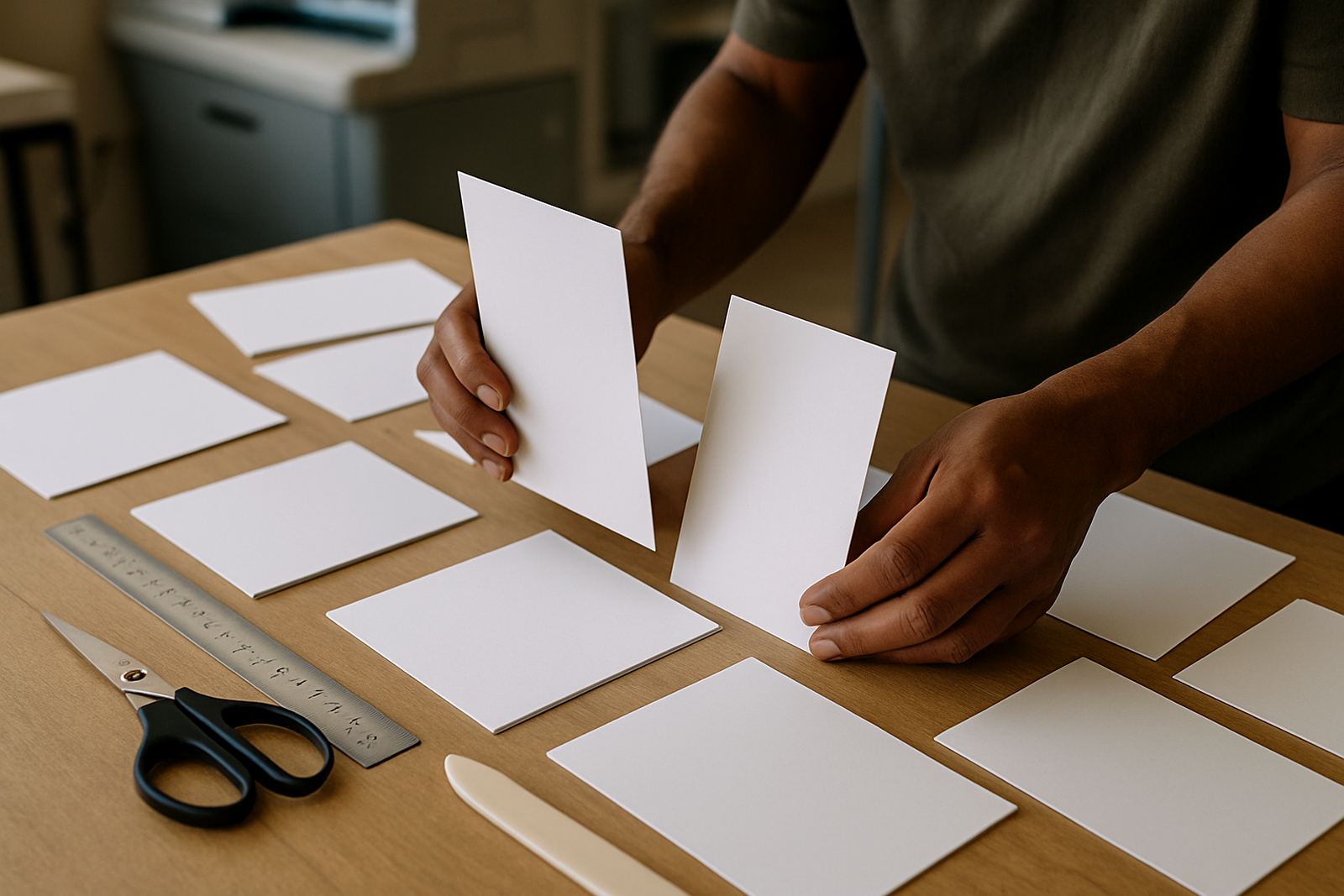
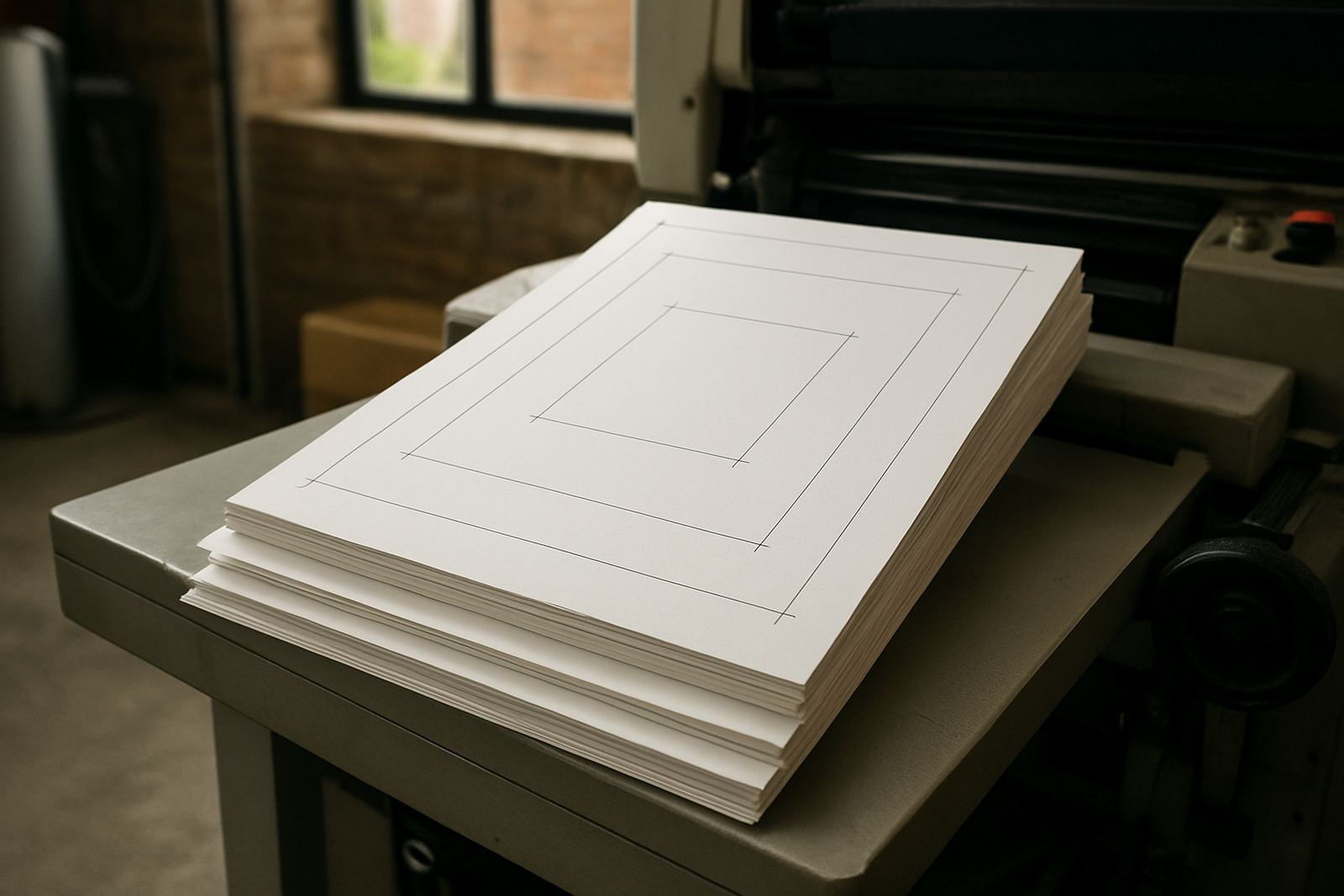
Bleed is one of the most common things that goes wrong on print PDFs. If colour, a background, or an image runs to the edge of the page, extend it beyond the trim line so the cutting process does not leave a white edge. This is essential for business cards, stickers and flyers, and it also matters on larger items like posters and banner artwork.
Safe margins are just as important. Text, logos and contact details should sit far enough inside the edge so they are not cut off or crowded by the trim. For forms and brochures, leave extra room near folds and binding edges. In municipal and trade work, clear layout helps the finished item look neat and makes proofing faster too.
- Add bleed on all sides where artwork reaches the edge.
- Keep text and logos inside the safe area.
- Show crop marks only if they are requested.
- Check fold lines and panel sizes before exporting brochures or menus.
Embed fonts and keep artwork editable where possible
Fonts can cause delays if they are not handled correctly. Embed the fonts in the PDF so the text appears the same on every machine. If a font cannot be embedded, convert the text to outlines before export. That is especially useful for quick-turnaround jobs where the file may be checked on different computers by Bianca in client services or Willem on the print side.
Before exporting, check that nothing has shifted off the page and that no links are missing. Artwork redraws and menu layout work often include small tables, icons and pricing blocks, so it helps to zoom in and scan each page carefully. If the document has transparent elements, confirm they do not produce odd shadows or box lines once exported.
- Embed fonts if the software allows it.
- Convert text to outlines when font embedding is not possible.
- Check that all linked images are included.
- Review transparency, shadows and overprint settings before saving.
Choose file size that balances speed and clarity
A PDF that is too large can be slow to open, slow to upload and awkward to check, especially when business owners are sending work between branches or from site offices in Mogale City and Roodepoort. A file that is too small may look fine on a screen but print soft or blocky. The aim is balance, not maximum compression.
For most everyday jobs, use moderate compression and avoid unnecessary image duplication. Keep one clean master export for print and, if needed, a lighter version for internal approval. If you are sending multiple pages, order them correctly and make sure the version name is clear. That saves time when the job is being checked for same-day production in Randfontein CBD.
- Export one print master and one lighter review copy if needed.
- Do not use extreme compression on photos or logos.
- Check that page order is correct before sending.
- Keep the file name simple and versioned, such as v1, v2 or final.
Final check before you send the file
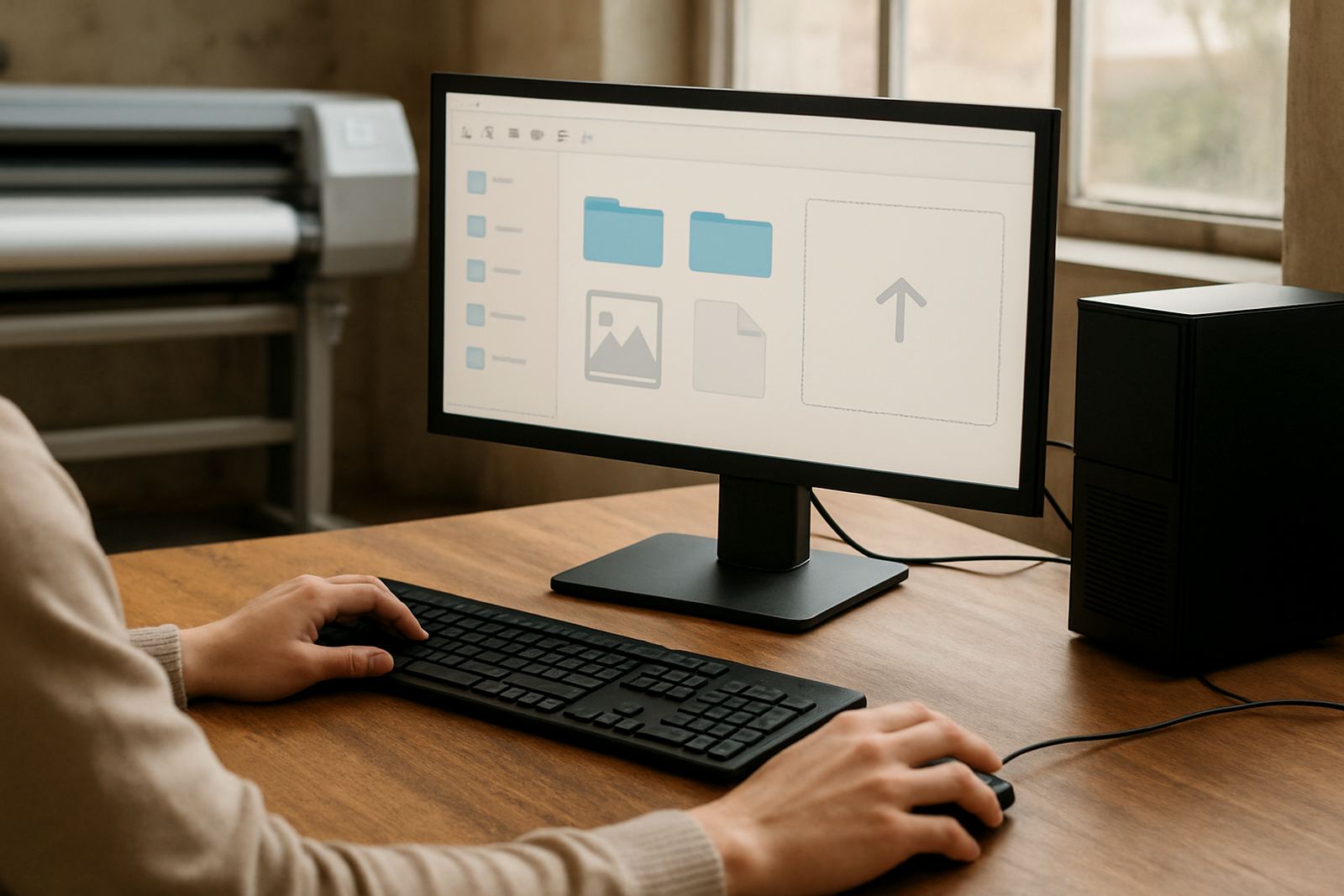
Before you submit artwork through the enquiry form, open the PDF and review every page at a zoom level that lets you spot small errors. Look for spelling, missing crop marks, shifted elements and colour blocks that do not line up. This last check is where many problems get caught before they become wasted paper or delayed production.
If the job is urgent, note that in your message so the team can plan the run properly. Quick-turnaround digital printing works best when the artwork is ready first time and the instructions are clear. That applies whether you need business cards for a start-up in Greenhills, stickers for a shop in Toekomsrus or posters for a promotion in Mohlakeng.
- Open the PDF and inspect each page individually.
- Check spelling, dates, contact details and prices.
- Make sure there are no missing images or blank pages.
- Send any special instructions with the file submission.